
Home › Writing › Study Desk
Typing Japanese: romaji or kana input, JIS or US layout, and IME settings
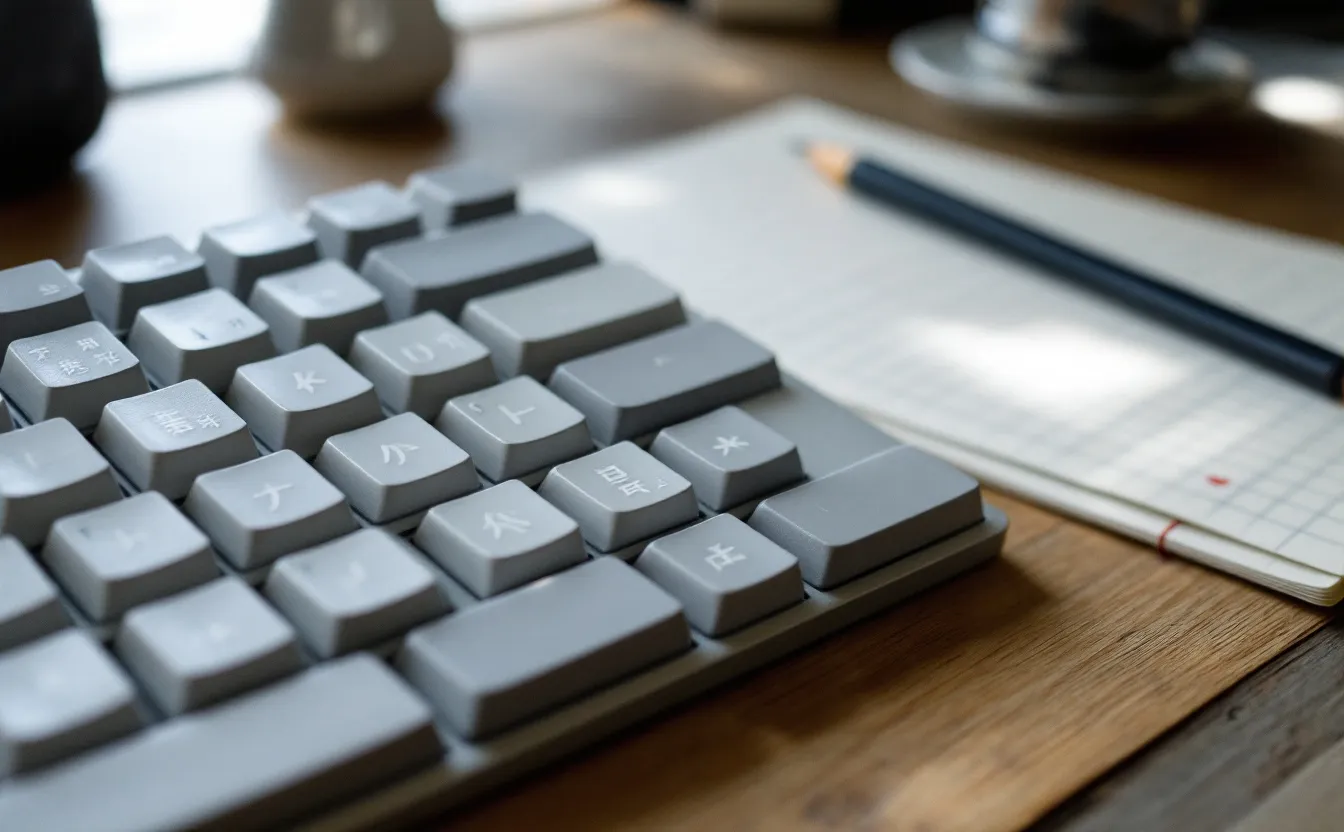
Many of the errors a proofreader finds in Japanese text are born at the keyboard. A wrong kanji picked from the conversion list, a half-width katakana word produced by one stray key, a full-width space where a normal one should be: none of these are spelling mistakes in the usual sense, and most of them come from how the keyboard and the input method editor (IME) are set up.
This guide goes through the choices in order. First the input method (romaji or kana), then the keyboard layout (JIS or US), then the IME settings that make the most difference to clean text. Operating systems rename their menus often, so the settings are described by what they do rather than by exact menu paths.
Romaji input or kana input
Every Japanese IME offers two ways to type.
With romaji input you type Latin letters and the IME turns them into kana: k-a gives か, s-h-i gives し. It works on any keyboard, needs no new layout, and is what most learners and a large share of native writers use.
With kana input each key produces a kana directly. On the JIS layout the T key carries か, the A key ち, the 3 key あ. The voicing marks ゛ and ゜ have their own keys, so が is typed as か plus ゛. Small kana such as ぁ or ゃ come from Shift. Kana input needs fewer keystrokes per word, and people who learned it tend to stay with it. It does require learning a layout of around fifty keys, and it works best on a keyboard that has the kana printed on it.
For a learner, romaji input is the sensible default. The switch between the two is a single IME setting, so trying kana input later costs nothing but practice time.
Romaji habits that cause slips
Romaji input has its own typo patterns, and they look like spelling errors in the final text.
- ん before a vowel or y. Typing k-o-n-y-a gives こにゃ, not こんや. Type n twice (k-o-n-n-y-a) or use n plus an apostrophe.
- Small っ. Double the next consonant: k-i-t-t-e gives きって. For a small っ on its own, most IMEs accept l-t-u or x-t-u.
- The particles は and を. These are typed as h-a and w-o, which is why こんにちわ appears in drafts when the writer typed what they heard.
- ぢ and づ. These need d-i and d-u. Typing j-i or z-u gives じ and ず, which is right for most words and wrong for 鼻血 (hanaji, written はなぢ) or 続く (tsuzuku, つづく).
- The long vowel mark ー. This is the minus key in Japanese mode. Hitting the wrong one of two nearby keys can put a hyphen or a full-width minus into a katakana word instead.
The JIS layout, key by key
A keyboard with the Japanese JIS layout looks like a US keyboard with extra keys squeezed in. The space bar is shorter, the Enter key is usually tall, and there are keys for switching and converting input. Here is what the Japanese keys do on a typical setup.
| Key | Where it is | What it does |
|---|---|---|
| 半角/全角 (hankaku/zenkaku) | Top left, where the US layout has the grave accent key | On Windows, switches Japanese input on and off |
| 英数 (eisū) | On Windows keyboards, shares the Caps Lock key; on Mac keyboards, left of the space bar | Mac: switches to Latin letters. Windows: Shift with this key toggles Caps Lock |
| 無変換 (muhenkan) | Left of the space bar on Windows keyboards | During input, often cycles the current word through katakana and hiragana; many IMEs let you set it to switch Japanese off |
| 変換 (henkan) | Right of the space bar on Windows keyboards | Converts the current input, like the space bar; with committed text selected, many IMEs reconvert it |
| カタカナ/ひらがな (often marked かな) | Right of 変換 | Switches to hiragana input; on many setups, Alt with this key toggles romaji and kana input |
| かな (kana) | Right of the space bar on Mac keyboards | Switches to Japanese input |
The Mac pair 英数 and かな is popular with people who switch languages all day, because each key does one thing: you never have to check which mode you are in, you just press the key for the mode you want. Several Windows IMEs let you get the same behaviour by setting 無変換 to "IME off" and 変換 to "IME on".
The JIS layout also moves symbols. The @ sits to the right of P, Shift with 2 gives a double quote, and there is a ¥ key and an extra key for the _ symbol (marked ろ in kana). This matters for passwords and for anyone who writes code, and it is the first thing to check if you buy a JIS keyboard after years on a US one.
Tell the operating system what you have
The IME and the physical keyboard layout are two separate settings. If the system thinks a JIS keyboard is a US keyboard, or the other way round, the letters still work but symbols come out wrong: you press the key marked @ and get something else. Some systems assume a JIS keyboard as soon as Japanese is added, so after adding the Japanese IME it is worth looking at the hardware keyboard setting and making sure it matches the keys in front of you.
A US keyboard with a Japanese IME
You do not need a JIS keyboard to type Japanese well. Plenty of translators and learners use a US or UK layout with a Japanese IME and romaji input, and the only real loss is the dedicated switching keys.
Without them:
- The space bar converts and Enter commits, exactly as on a JIS keyboard.
- To switch Japanese input on and off, Windows usually accepts Alt with the grave accent key on a US layout. On a Mac, the default shortcut to change input source uses Control and the space bar, and there is an option to switch with Caps Lock instead.
- Many people set one shortcut and stop thinking about it. The important part is having one reliable way to know which mode you are in.
Function keys during conversion
These work in most Japanese IMEs on any layout, while the text is still underlined and not yet committed:
- F6: hiragana
- F7: full-width katakana
- F8: half-width katakana
- F9: full-width Latin letters
- F10: half-width Latin letters
F7 is the quick way to write a loanword in katakana without the IME offering kanji. F8 is the usual way half-width katakana gets into a document by accident, and half-width katakana is one of the things the checker's legend lists as a problem in most text.
IME settings that reduce slips
Every Japanese IME has a settings window with dozens of options. A handful of them affect the quality of what you type.
Punctuation style
The IME decides what the comma and full stop keys produce: 、。 or ,. or ,。. Most general writing uses 、 and 。, and the Agency for Cultural Affairs guidance on official writing (公用文作成の考え方) takes 、 and 。 as the basic pair, while allowing the comma in horizontal text when circumstances call for it. Some technical and academic writing uses ,.. Set this once to match your house style, so you are not fixing it later with search and replace.
Space width
In Japanese mode, the space bar may type a full-width space (U+3000) or a normal half-width one, depending on a setting usually labelled something like "space input". Full-width spaces are hard to see on screen and cause trouble in search, file names and web forms. Unless your style needs them (for example, a full-width space to indent paragraphs), set spaces to half-width at all times. The full-width and half-width cleanup guide has search patterns for finding the ones already in a document.
Digits and symbols
The same idea applies to numbers and symbols typed in Japanese mode. Most house styles want half-width digits in horizontal text. If the IME types full-width digits by default, you will end up with 3月 next to 3月 in the same paragraph.
User dictionary
The user dictionary (単語登録, tango tōroku) lets you add words with a reading of your choice. It is the strongest tool you have against two kinds of error:
- Names and terms the IME does not know. Register them once with the correct kanji and you stop picking the nearest wrong one.
- Spellings fixed by a style sheet. If a client writes サーバー with the long vowel mark, register サーバー under the reading さーば as well, so the short form never appears.
Many people also register long fixed phrases under short readings, such as a standard email opening under a two-kana reading. That saves time, but a typo in a dictionary entry gets reproduced every time you use it. Look over the list now and then, and export it as a backup before reinstalling anything.
Learning and prediction
IMEs learn from your choices. Pick the wrong kanji once and it may sit at the top of the list next time. Most IMEs let you remove a single learned entry from the candidate list, or clear the learning history altogether. Predictive input (suggestions as you type) speeds things up and also inserts whole words you did not mean. Some IMEs offer suggestions from an online service, which means typed text leaves your computer. For confidential work, check that setting.
How you convert
Long strings converted in one go give the IME more chances to guess wrong. Converting in short phrases, and using Shift with the arrow keys to adjust where one segment ends and the next begins, catches most homophone slips at the moment they happen. Some IMEs also convert as you type, without waiting for the space bar. It is fast, but some people find they check the result less closely. The piece on IME conversion errors collects the homophones that most often slip through.
Keep a pen in the routine
Typing has one well-known side effect: you recognise kanji perfectly on screen and then cannot write them by hand. The IME does the recall for you. For learners and for anyone who writes Japanese for a living, a few minutes of handwriting now and then keeps that recall alive. A pad of manuscript grid paper is a good fit, because the squares also train you to see character counts the way Japanese editors do. The guide to genkō yōshi explains how the squares are used.
Questions about Japanese keyboards
Do I need a JIS keyboard to type Japanese?
No. Romaji input works on any layout, and the conversion keys have equivalents on a US keyboard. A JIS keyboard is worth having if you want kana input, the dedicated switching keys, or the same layout as colleagues in Japan.
My keyboard suddenly started typing kana instead of letters. What happened?
The IME has most likely been switched to kana input. On many Windows setups, Alt with the カタカナ/ひらがな key toggles between romaji and kana input, and it is easy to press by accident. Press it again, or change the input method back in the IME settings.
Is kana input faster than romaji input?
It uses fewer keystrokes, and people who are fluent in it are often quick. Whether it is faster for you depends on how much time you are willing to spend learning a new layout. For most learners, romaji input and good IME habits matter more than the input method itself.
Can I use a JIS keyboard for English?
Yes. The letters are in the same places. Symbols move, so it takes a few days to get used to the quote marks, the @ and the brackets, and the operating system needs to know the keyboard is JIS.
More in the same section

A first Japanese textbook for self-study, and whether you need the workbook
What a first Japanese textbook has to do when you study alone, where GENKI I and its workbook fit, and when a grammar dictionary is worth adding.
Read on ›
Genkō yōshi: how manuscript paper works and how to practise with it
The layout rules of Japanese manuscript paper: titles, small kana, punctuation squares, numbers and character counts, plus a simple way to practise them.
Read on ›
Japanese grammar dictionaries worth keeping on the desk
What a Japanese grammar dictionary does that a textbook cannot, the two Makino and Tsutsui volumes compared, and how to use one while you proofread.
Go to the article ›